Body
In addition to having access to web versions, active students, faculty, and staff will be able to download Microsoft Office 365 applications on up to 5 devices (PC, Mac) and up to 5 mobile devices (Android or iOS).
Because of Microsoft Office 365's online activation features, Office apps will not work on computers that are completely cut off from the Internet. Computers must connect to the Internet periodically for the software to validate its license.
- Login to the Microsoft Office Web Portal at https://m365.cloud.microsoft/apps.
Log in with your Cecil Credentials (username@cecil.edu or username@chawk.cecil.edu.)

- Enter your Cecil password.

- Select "Install Office apps" located in the upper right-hand corner. Next, select Office 365 apps.

- Depending on your browser, a file will automatically download (likely saved to your "Downloads" folder). You will want to run this file. Then select yes to begin the installation.

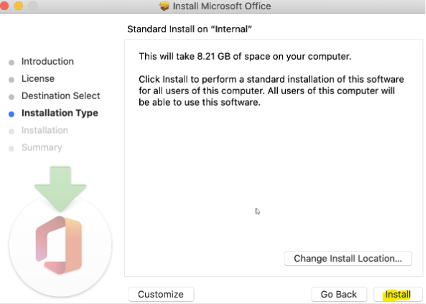
- You will be guided through a series of screens to kick off the install.


- Enter your local account credentials to approve the installation.

-
After some time, the Office Applications will be successfully setup on your computer.